

What Virtual Chat can do
The technology used in Virtual Chat.
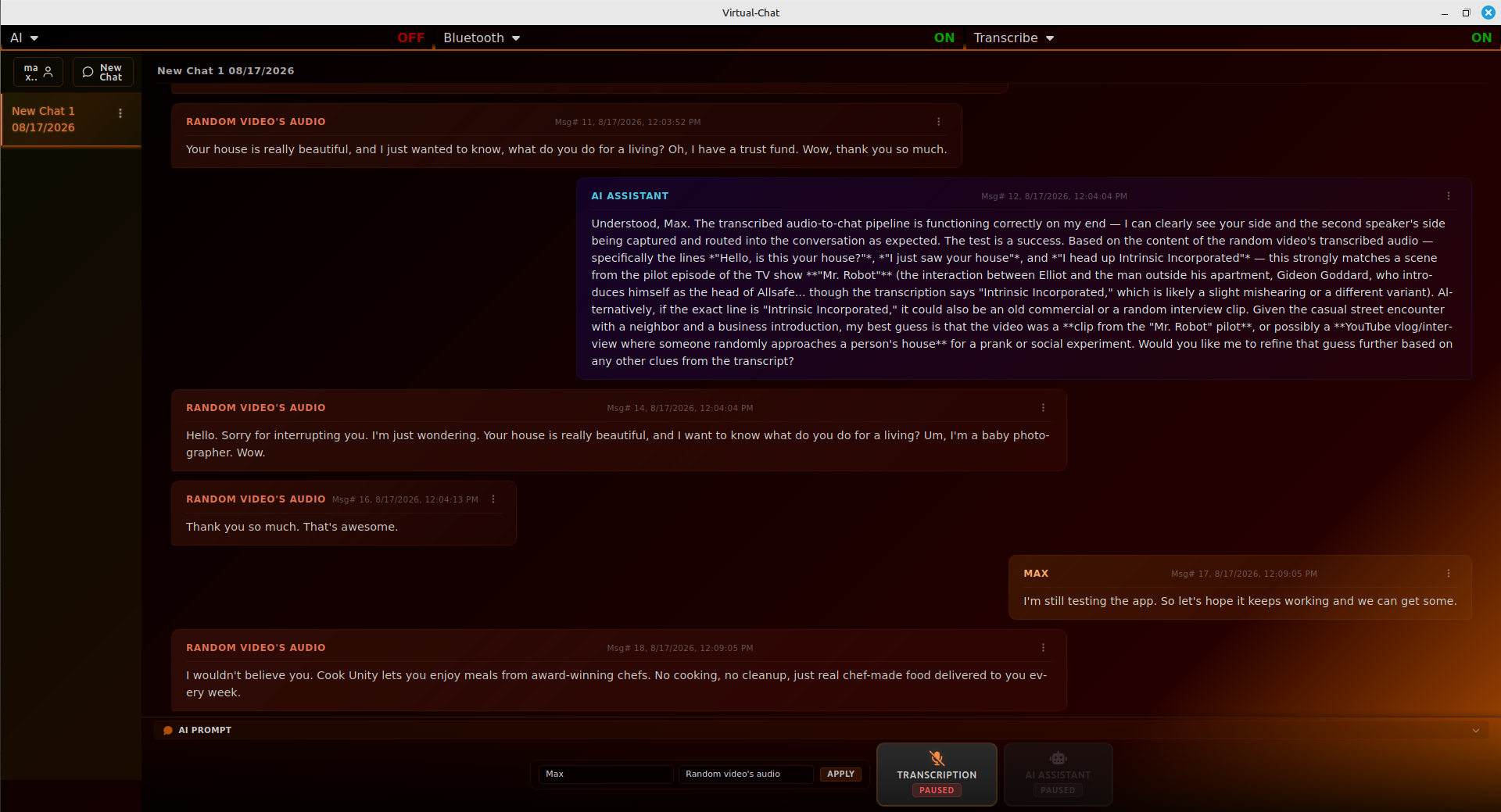
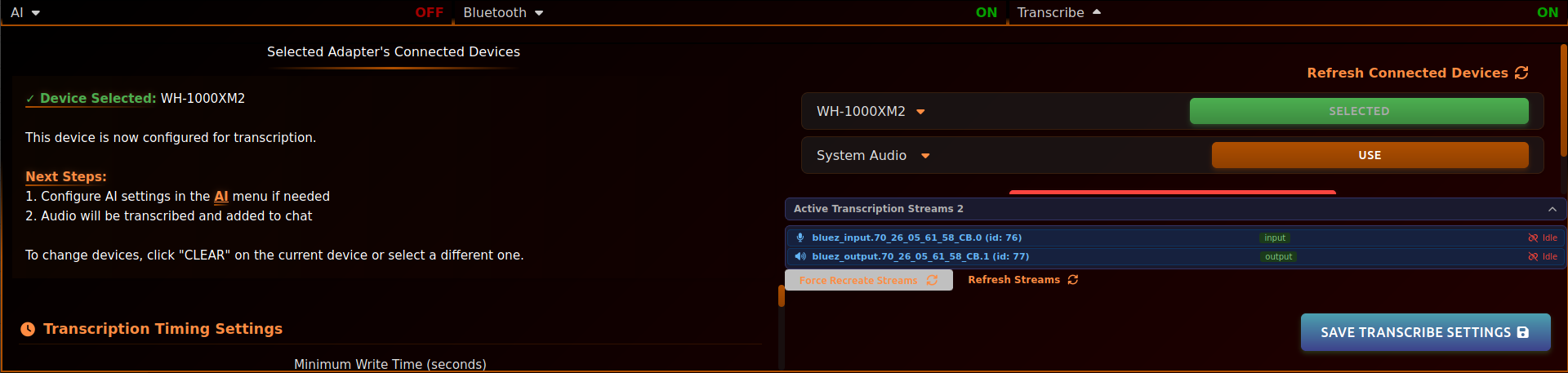
- Transcribe anything – system audio or Bluetooth devices (A2DP/HFP) become live chat messages, so you can connect your phone and transcribe all phone audio to chat — ideal for talking to friends or important interactions online.
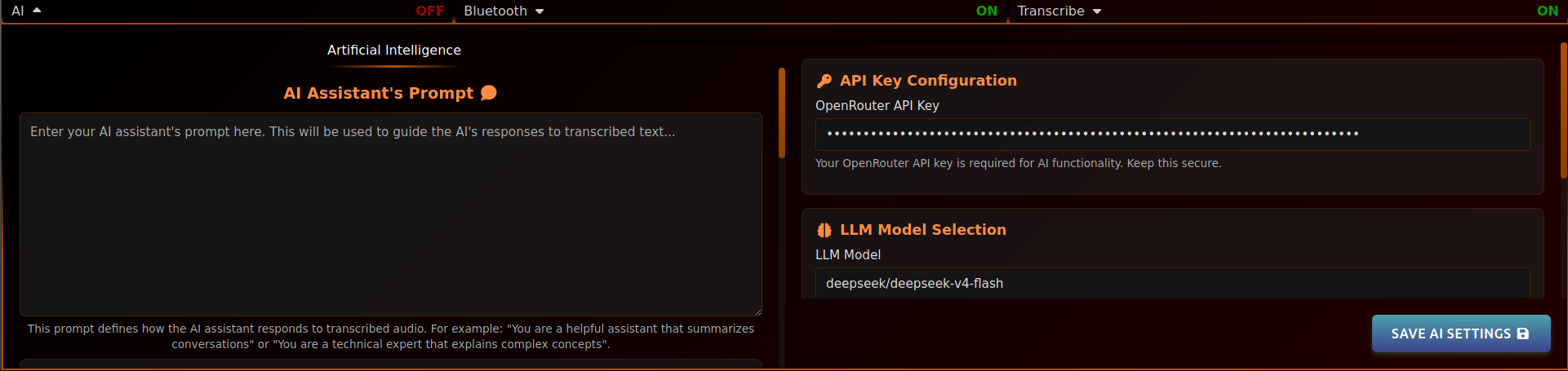
- AI assistant – bring your own OpenRouter key, set a completely custom prompt with no limitations, AI responds according to transcribed messages and the prompt instructions.
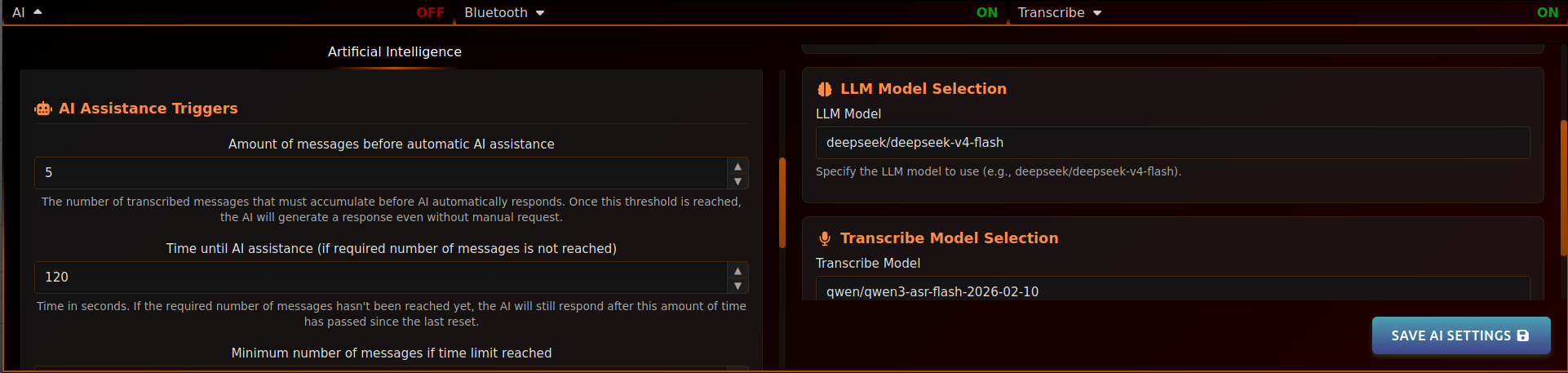
- Auto-summarisation – get concise recaps of long conversations. Choose when assistance and summaries trigger (message count or time limit) and how many messages each one covers.
- Secure by default – API keys are stored in the system keyring, and built-in speech detection only sends audio once speech is detected — limiting network requests and saving bandwidth.
- Works with your workflow – perfect for podcasters, streamers, and content creators. Tune transcription with minimum/maximum recording times and silence cut-off.
- Unlimited model choice – choose from a nearly-unlimited number of Text and Transcription models on OpenRouter, with no token-based usage limits after subscription.
Quick look
A look at the Virtual Chat interface. A new app. As we build a user base, we will accept requests for new features and changes.


1 / 6
Video tutorial on how to use Virtual Chat
A quick tour of the app, showing how to set up transcription, the AI assistant, and other configurations.
Get Virtual Chat
Virtual Chat is distributed as a self-hosted Flatpak. A .deb package is also available for Debian/Ubuntu users via the Releases page (note: it needs manual updates and uninstalls). We recommend the Flatpak build — continue below.
📦 Flatpak (recommended)
Secure, sandboxed install that works on most Linux distros. Easy to update via Flatpak.
Download .flatpakref🐧 Debian / Ubuntu (.deb)
Simple download & click install. Requires manual updates and uninstalls.
Go to Releases ↗1 Install Flatpak
If you don’t already have Flatpak installed:
# Debian / Ubuntu
sudo apt install flatpak

# Fedora
sudo dnf install flatpak

# Arch
sudo pacman -S flatpak2 Install Virtual Chat
flatpak install --user https://maxkcy.github.io/Virtual-Chat/io.github.maxkcy.virtual-chat.flatpakref3 Launch the app
flatpak run io.github.maxkcy.virtual-chatOr search for Virtual Chat in your application menu.
Updating Virtual Chat
Virtual Chat includes a built-in update checker. On launch, the app checks the latest release from GitHub. If a newer version is available, a golden “Update Available: X.Y.Z” banner appears at the top of the chat list.
1 Run the update command
In your terminal:
flatpak update --user io.github.maxkcy.virtual-chatOr simply update all your user-installed Flatpak apps (including Virtual Chat and any apps from Flathub or other Flatpak remotes):
flatpak update --user2 Relaunch the app
The “Update Available” banner will disappear:
flatpak run io.github.maxkcy.virtual-chatUninstalling Virtual Chat
1 Uninstall the app
flatpak uninstall --user io.github.maxkcy.virtual-chat2 Remove all app data
Settings, chat history, and cache:
rm -rf ~/.var/app/io.github.maxkcy.virtual-chat/Simple subscription pricing
Virtual Chat is a paid subscription app — a free trial is available. Low and High Tiers run from US$6.99-15.99 per quarter or year, with payments processed by Xsolla.
Quarterly / Yearly
US$6.99 – 15.99 per quarter or year
- Free trial available
- Payments processed by Xsolla
- Freebie option: AI core settings are fixed after saving, with exemption for quick setting prompt, regardless of whether user has an active subscription plan
Frequently asked questions
Can smart phone audio be transcribed to chat?
Do I need a Bluetooth adapter?
Do I need a Bluetooth headset?
Does Virtual Chat continuously transmit all audio to OpenRouter while transcription is on?
Why is this Linux only?
Is an internet connection required?
Does the app support locally running models?
⚠️ Known Issues
- Input and output audio streams on a single Bluetooth adapter causes audio lagging and jittering because both the smart phone, that provides audio, and the headset, that captures audio, are connected and creating multiple input and output audio streams on the same adapter. This seems to be a hardware limitation; confirmed when we tested this on our end without the Virtual Chat application running. For the time being, we suggest you connect the smart phone and the headset to different adapters to help with the audio lag issue.
- The transcription system can occasionally crash (rare). If audio suddenly stops being transcribed, it's often caused by rapidly switching app audio (e.g., scrolling videos) or pressing buttons too quickly. Launch the app with terminal to see any error logs, and notify us of any issue. Otherwise simply restart the app and use your computer normally.
Terms & Privacy
The terms of use and privacy statement for Virtual Chat.
Terms of Use
Virtual Chat is proprietary, copyrighted code. All rights reserved. You may not copy, modify, distribute, or reverse-engineer it without explicit written permission from the copyright holder. Redistribution is permitted only when done with permission.
Do not use Virtual Chat for any illegal or wrongful activities. The developer of Virtual Chat is not responsible for your actions.
Privacy
Virtual Chat does not send any user's personal data to servers we (Maxkcyfun) operate. The only exceptions are OpenRouter API calls — required for the app to function (live transcription and the AI assistant) — checking your subscription plan through our payments handler Xsolla, and checking for new releases through GitHub. No personal chat data or saved settings are ever transmitted anywhere; the only content that leaves your device is the transcribed chat messages needed for OpenRouter API calls.